Features
What you can show in your pub
Keep menus and event information current throughout your venue.
EXAMPLES ON SCREEN
See what your screens can show.
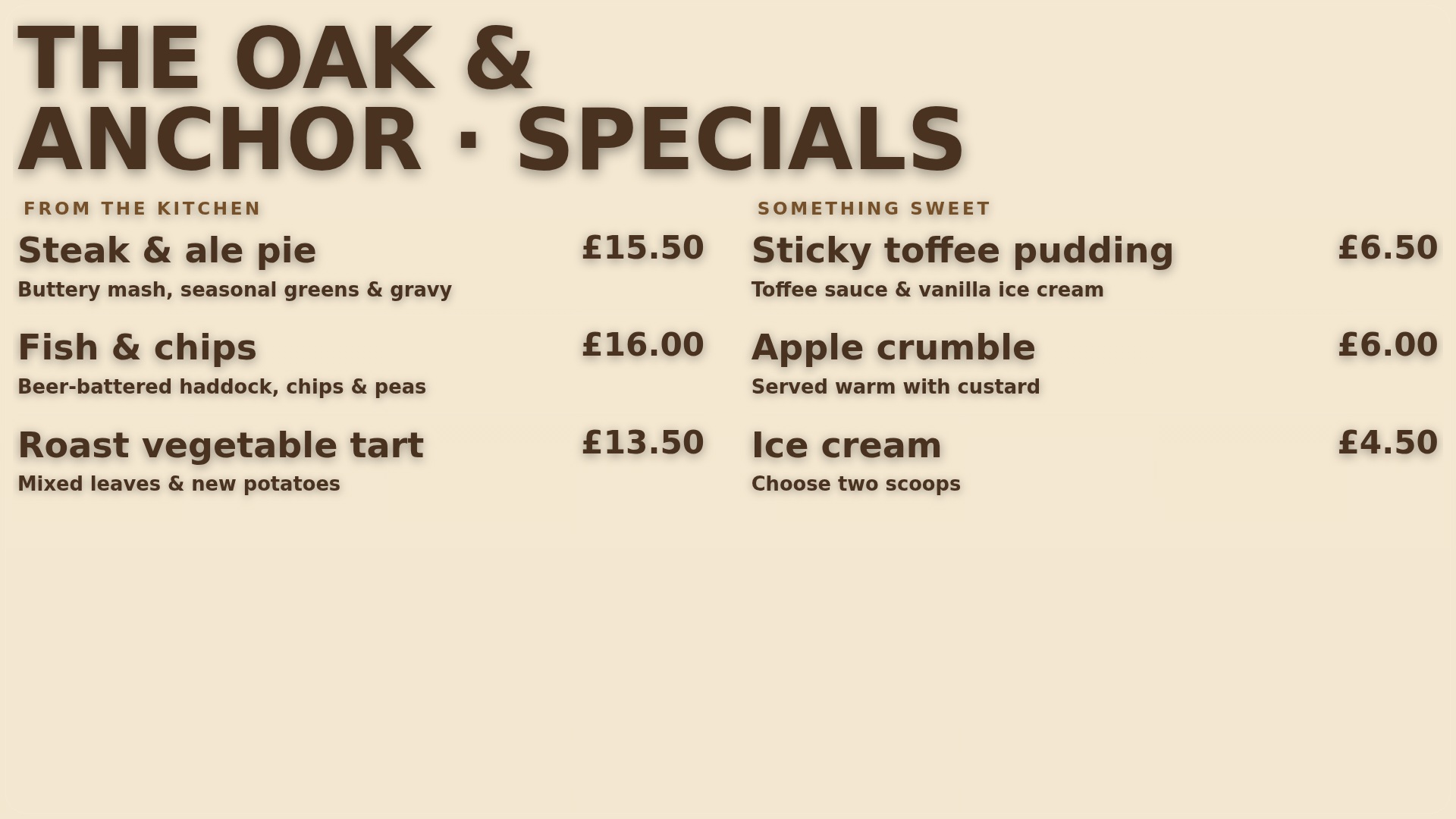
Make the next choice easy
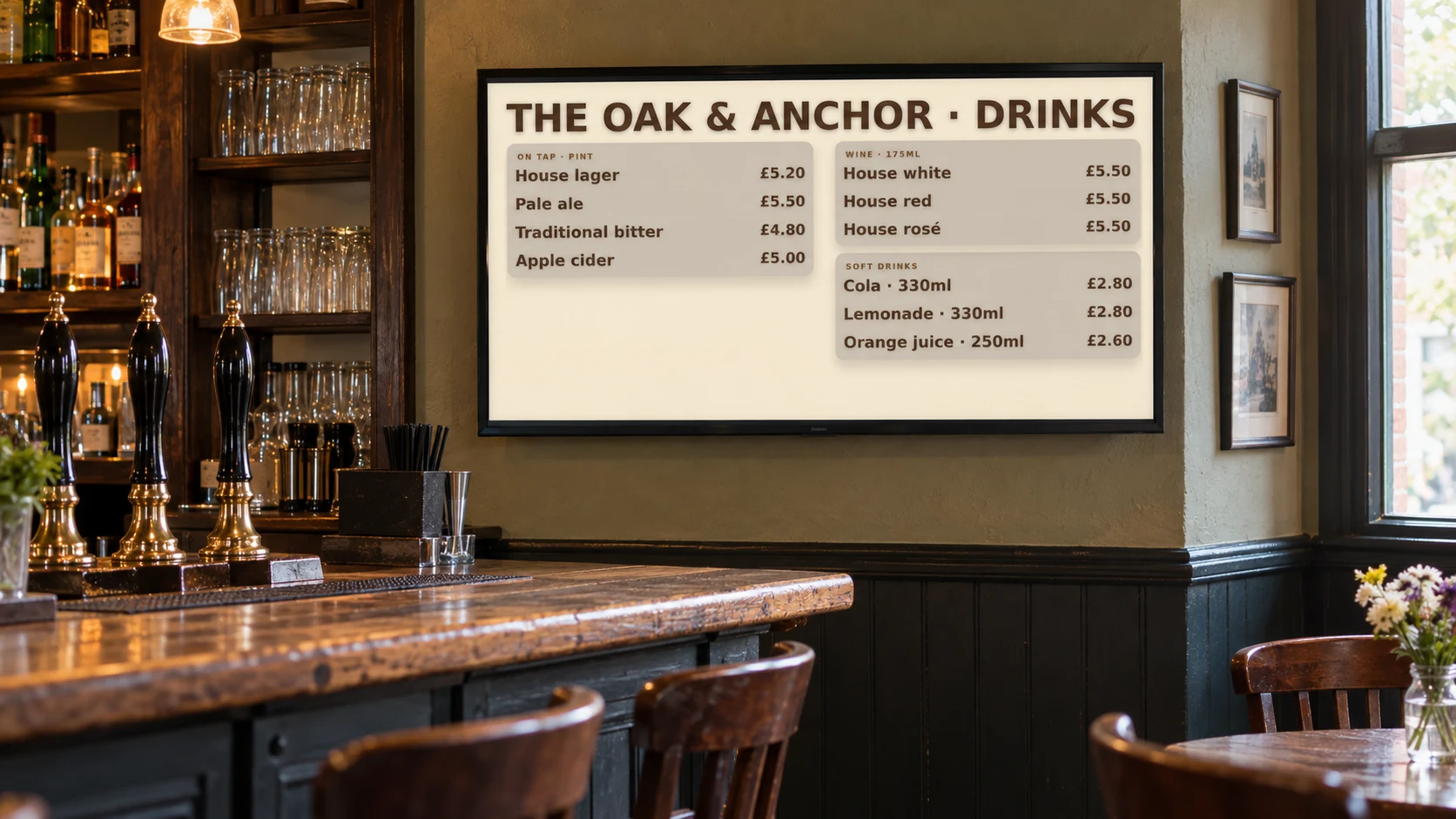
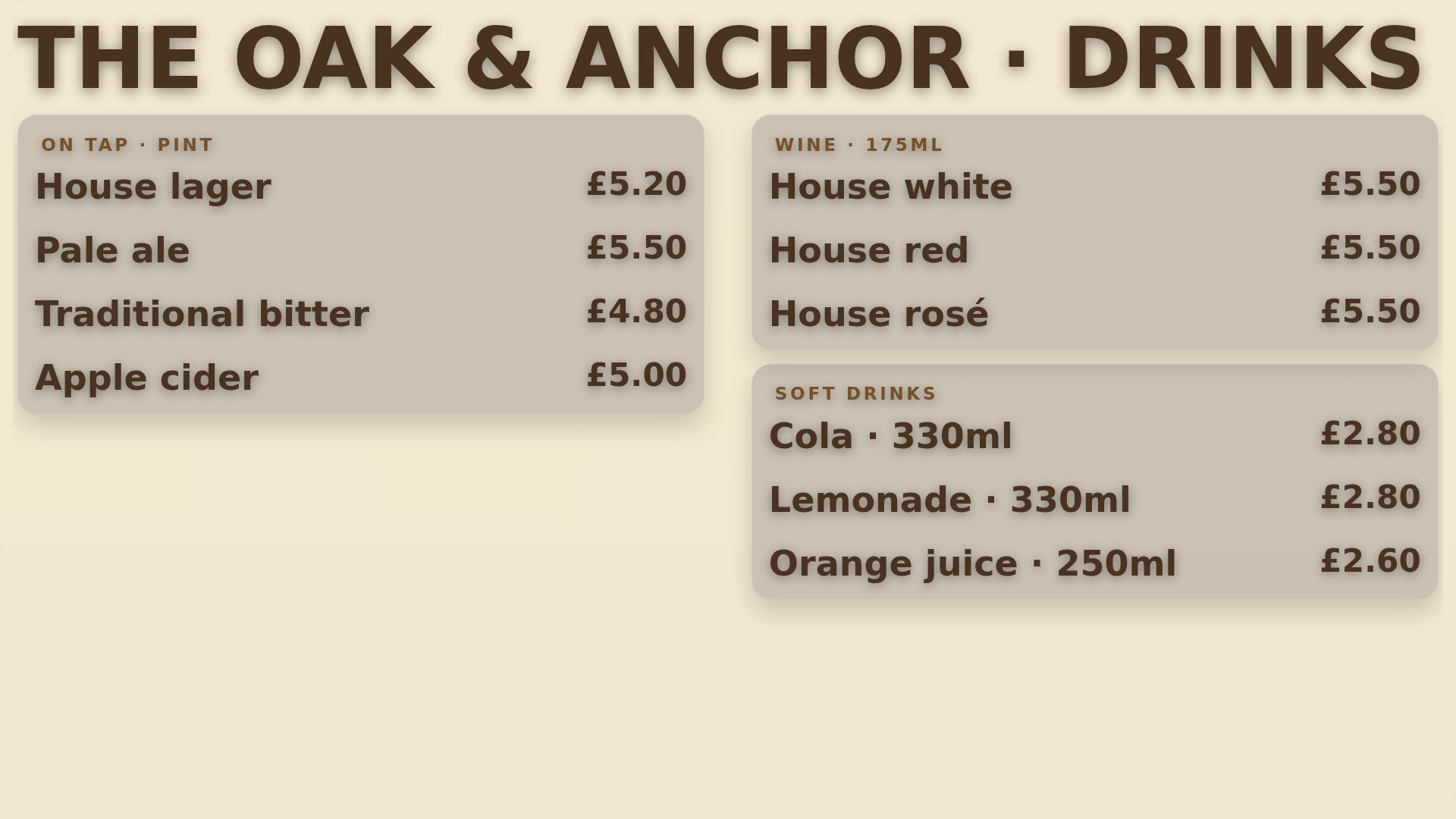
Make food, drinks and prices easy to browse at the bar and around your venue.
More detailLess detail
Show drinks, food and prices clearly at the bar and around your venue.
Fill your calendar
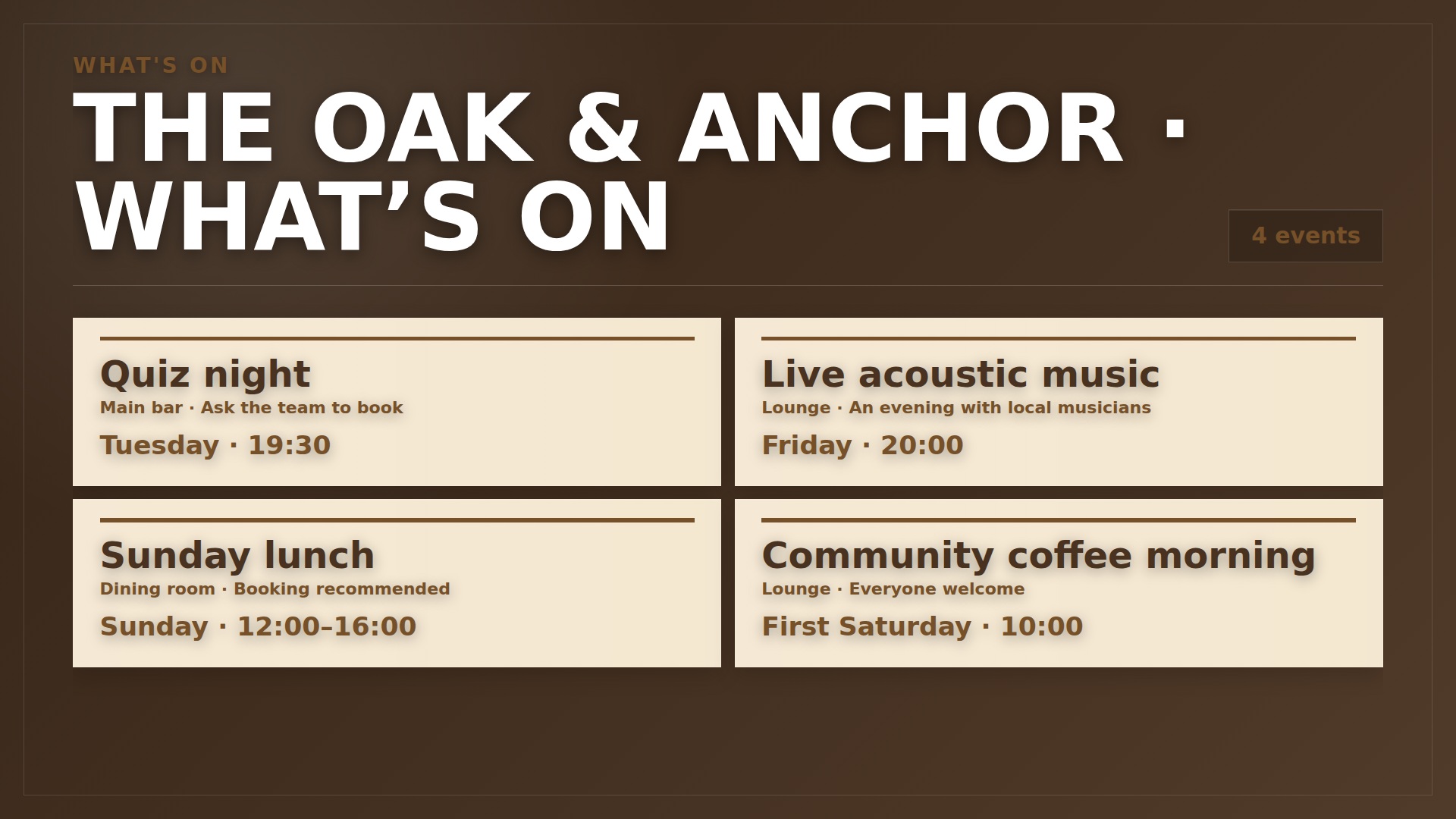
Give quiz nights, live music and community events clear dates, times and booking details on screen.
More detailLess detail
Promote quiz nights, live music and community events with dates, times and booking details.
Keep specials current
Keep dishes, prices and service notices current from your dashboard without repeatedly replacing printed posters.
More detailLess detail
Change dishes, prices and service notices from your dashboard without reprinting posters.
Choose what plays
Arrange venue content into playlists and schedule what plays on different days and at different times.
More detailLess detail
Combine your content in playlists and schedule it for different days and times.
Start with one screen
Start with a compatible screen, then add more displays when the setup suits your business.
More detailLess detail
Use a compatible screen and add more when it suits your business.
Check your screens
Review recent screen check-ins from your account to see which venue players have been reporting.
More detailLess detail
See recent screen check-ins from your DisplayFlow account.
Upload event artwork, menus and presentation pages
Upload event posters, menus, photos and videos, then review imported document pages before choosing their playlist.
More detailLess detail
Bring food photographs, drinks graphics, event posters and MP4 videos into Media. A PDF menu or PowerPoint can be imported as ordered still images for review, then added to a playlist or folder slideshow. Presentation animations, transitions and audio are not retained in those images. Preview prices, serving details and event times before publishing.
Plan the week and expire event promotions
Schedule food, offers and entertainment for each screen, with expiry dates for temporary promotions and event posters.
More detailLess detail
Build separate playlists for food service, regular offers and entertainment, choosing item order and display duration. Assign each bar or room screen the right programme and schedule changes for different days and times. Give a live-music poster or limited promotion an expiry so it stops being selected once its useful date has passed.
Keep venue branding and notices in view
Add branding, QR links, short notices and practical pages while keeping food and drinks information readable.
More detailLess detail
Use reusable logo, text, date/time and QR code overlays on selected playlist items. Add a ticker for short venue notices or a Special page for a clock, event countdown or weather. Keep the main food or drinks information readable when adding extras. Live weather, external websites and streaming content need an internet connection.
Monitor bar, lounge and function-room players
Check player connections across the bar, lounge and function room, including available alerts and connectivity requirements.
More detailLess detail
Name each screen by its location and review recent check-ins from your account. Configure available email alerts so you can investigate a player that stops reporting. Android and compatible browsers are supported. Suitable configured players can keep downloaded media running through a connection loss; new updates and live web content depend on connectivity.
Send temporary notices to an assigned screen
Let staff send a temporary service notice to an assigned screen before normal playlist playback resumes.
More detailLess detail
Create a named message setting for the bar or function room, then let staff send a short service notice from admin or the separate staff page. Queued messages arrive when the player checks in, interrupt the normal display and return to playlist playback afterwards. Optional chimes need suitable speakers and audio permissions on the device.
Handle advertiser artwork through private links
Request local advertiser artwork through private upload links and review every graphic before choosing its playlist placement.
More detailLess detail
Where advertiser tools are enabled, record local advertiser contacts, agreed rates and terms. Send a private, single-use upload link for one JPG, PNG or WebP graphic without sharing dashboard access. Review the returned artwork in Media and choose its playlist placement yourself. Agreement summaries support administration; issuing invoices and collecting advertiser payments remain your responsibility.